
Complete Guide: Connecting to Your Server via SSH and Managing Root Access
Understanding SSH and Why It Matters
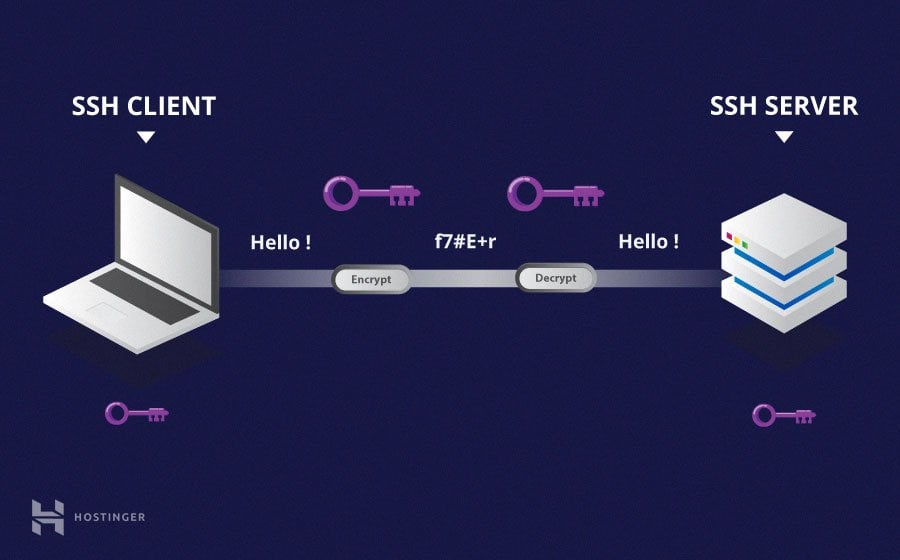
If you’re new to web hosting and server management, SSH (Secure Shell) might sound intimidating. But here’s the truth: it’s one of the most important tools you’ll use to manage your hosting infrastructure securely. SSH allows you to connect to your server remotely and execute commands with complete control over your Linux environment. Unlike FTP or older protocols, SSH encrypts all your data, making it impossible for hackers to intercept your credentials or sensitive information.
Think of SSH as a secure tunnel between your computer and your server. Everything you type, every command you execute, and all the data traveling through this connection is encrypted. This is why SSH has become the industry standard for server management across the web hosting world.
Getting Started: Basic SSH Connection Setup
Before you can connect to your server via SSH, you need a few things. First, you’ll need your server’s IP address, which your hosting provider gave you when you purchased your plan. You’ll also need your username (often ‘root’ for VPS, or a specific user for shared hosting) and your password or SSH keys.
On Windows, you’ll want to download PuTTY, a free SSH client that makes connecting incredibly easy. Mac and Linux users already have SSH built into their terminal. Simply open your terminal and type a command like: ssh username@your_server_ip_address. You’ll be prompted to enter your password, and boom—you’re connected to your server.
The first time you connect, you might see a security warning asking if you trust this host. This is normal. Type ‘yes’ to continue. Your server’s fingerprint is added to your known hosts file, and future connections won’t show this warning.
What is Root Access and When Do You Need It?
Root access is like having the master key to your entire server. As the root user, you can install software, modify system files, create new user accounts, and essentially do anything on your server. With shared hosting, you usually don’t get root access because multiple customers share the same server. But with VPS or dedicated hosting, you typically get full root access.
Having root access means great power and great responsibility. You can accidentally break your server with a single wrong command, so always think before you execute anything as root. Many experienced admins actually create a separate user account for daily tasks and only use root when absolutely necessary.
SSH Key Authentication: The Secure Alternative to Passwords
While password authentication works, SSH key authentication is significantly more secure. Instead of typing a password every time, you use a pair of cryptographic keys: a private key (kept on your computer) and a public key (stored on your server). When you connect, the server verifies your private key matches the public key, and you’re authenticated instantly without typing any password.
Here’s why this matters: hackers can try millions of password combinations using brute-force attacks. SSH keys make these attacks virtually impossible. The private key is extremely long and complex—much stronger than any password you could remember.
How to Set Up SSH Key Authentication
Setting up SSH keys is easier than you might think. First, generate your key pair on your local machine. On Mac or Linux, open terminal and run: ssh-keygen -t rsa -b 4096. This creates a 4096-bit RSA key, which is currently considered very secure. You’ll be asked where to save it and whether to add a passphrase. The default location (~/.ssh/id_rsa) is perfect, and adding a passphrase provides extra security.
Next, you need to copy your public key to your server. If you already have password access, use: ssh-copy-id -i ~/.ssh/id_rsa.pub username@your_server_ip_address. This command automatically adds your public key to the correct location on your server. If that doesn’t work, you can manually upload your public key and add it to the ~/.ssh/authorized_keys file.
Windows users with PuTTY should use PuTTYgen to generate keys. Load your private key into PuTTY’s authentication settings, and you’re ready to connect without entering a password every time.
Securing Your Linux Server After Connection
Once you’ve connected to your server, your first priority should be security. Change your root password immediately, even if you’re using SSH keys. Create a new non-root user account for daily tasks, and add it to the sudo group so you can run administrative commands when needed. Disable password authentication in your SSH configuration file (/etc/ssh/sshd_config) and restart the SSH service.
Consider changing the default SSH port from 22 to something else. While this adds only minimal security, it reduces the noise from automated attacks targeting the standard port. Always keep your system updated with the latest security patches, and consider installing a firewall like UFW on Ubuntu or FirewallD on CentOS.
Troubleshooting Common SSH Connection Issues
Can’t connect? First, verify your IP address and username are correct. Check that SSH service is actually running on your server. If you’re using SSH keys, ensure file permissions are correct: your private key should be 600 and the .ssh directory should be 700. Connection timeouts usually indicate firewall issues—make sure port 22 (or your custom port) is open on both your server and any firewalls in between.
If you suddenly can’t connect but could before, you might have corrupted your authorized_keys file. Your hosting provider usually offers a console or VNC access through their control panel so you can fix permissions and file contents directly on the server.
Final Thoughts on Secure Server Management
Mastering SSH is one of the best investments you can make as a server administrator. It gives you complete control over your hosting infrastructure while maintaining security. Start with basic password authentication to get comfortable, then migrate to SSH keys. Always follow security best practices, keep your system updated, and never hesitate to consult your hosting provider’s documentation when you’re stuck.
Related Resources & Guides
-
Internal Guide: Once your server infrastructure is fully secured via SSH, your next step is protecting data in transit. Check out our step-by-step SSL/HTTPS Installation Guide to secure your web traffic.
-
External Reference: For advanced configurations and deeper documentation on managing cryptographic keys, consult the official OpenSSH Manual and Key Management Guide.
Leave a Reply